(in the previous post you have read about to write your first c# program under Visual Studio environment. Today we shall come across the differences of using F5 and ctrl+F5 to run/execute our program.)
Showing posts with label Visual Studio 2008. Show all posts
Showing posts with label Visual Studio 2008. Show all posts


3.6.13
How to write c sharp program in 8 simple steps using visual studio 2008/2010

How to write a program in visual studio 2008/2010
It is really very easy to use an Integrated Development Environment or IDE to practice any programming language.However, doing programming practice in that is good but don't wish to rely on 'Intellisense' feature. Other wise you would not be able to recall which syntax you would type or which class you should write after '.'
Well to do just open visual studio. And follow these steps
>> click on File menu and then New.
>> click on New Project.
>> Select your project type, lets pick, Console Application.
>> Now proceed, type the name that you want to give to your namespace, in first box labelled as Name.
>> Browse the location or let visual studio save this in its own place created already under Library folder by the name of Visual Studio 2010.
>> now type the solution name which is of Visual studio use and also you could remember by it that this specific programs have been stored here.
>> So it will another Tab/window under its environment which is named as Program.cs
>> now you can write your c# code under the 'firstprogram' namespace.
(you can find this is in following snapshot)

So it was a short and sweet example of how you may create a c# program. I have not given screen shots of each steps, because i assume the above are self-explanatory. Just do it buddies. However in case of any just write under here in comment box.
Good Luck!
Thanks!!
12.12.10
Catching the value of any Kind of Dialog Boxes
How to use the value return by any message box?
We use message box when we want to make aware of any info, warning, error, message, greeting anything by your candidate system. In this case we just use the enumerator DialogResult class which help us to know the result of any click made over on a MessageBox control.
Lets do a hands on example
first of all we design a form, according to this situation I open a new form using File-> New -> Project option in C# language section.
Keep the name whatever u wish, for simplicity I have not change the name of form.
Lets do Design of our form.
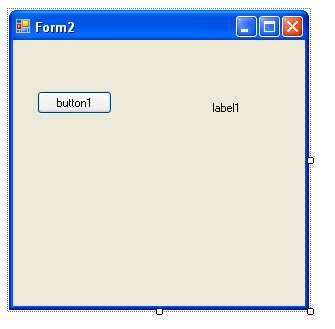
Just place a button and a label.
we would double click on “Button “ and it will open its handler in which we could write code that we want to execute.
that is we wanna execute a message box, and over which when we click which ever button, it would return the value of click. I hope this scenario is as clearer as like water.
just go through pictures and understand the process what I have done to accomplish what has said above.
Pic 1:

Explanation:
Picture 1: here we just create a form and double click over that.
Picture 2: here we have been writing code. Open a message box and taking it s value into enum class object of DialogResult. It is really important line of code… which ever controls value you are thinking to be read like Open dialog or Save dialog box you can use this enumerator class and make your job simple.
DialogResult d = MessageBox.Show(“your message”,”title”, MessBoxButton.OKCancel, MessageBoxIcon.Stop);
I hope you have got what were going on in the code written above, now it is time to taste the result of our hard work.

in the above image, which is the output of our example we generate a message box on the click over button1. And For instance we click over OK button, now see what actually happens below.

It is displaying OK text on the label1, which means we have selected OK button. That is what we want to show to the user, now if you want to see CANCEL text on the label1 then you must write the code in Visual Studio IDE for .net framework.
Leave your comment under here, if you face any problem in executing the above program in any way.
Post related to CSharp programming
- Basics of OOPs (Object Oriented Programming System)
- Straightforward points about Overriding
- C# Method Overloading- in few simple steps with example
- Talking about C# Interface: in few simple straightforward steps
- C# code Abstract method- In few simple straightforard steps
- Select start up project in just 3 steps in visual studio
- Starting with array variable
- whether to press F5 or ctrl+F5 to execute my program.
- How to write c sharp program in 8 simple steps using Visual Studio
- Catching the value of any Kind of Dialog Boxes
- Line Number along with Code in VS2008 / VS2010 / VS2012
3.12.10
Line Number along with Code in VS2008/VS2010/VS2012
Hello buddies!
We often need to go on a particular line number to check the error found, specified by the IDE, (Visual Studio 2008). In this way you can understand the need of line numbers along with code. however you can go on a particular line by pressing a key combination that is (ctrl+G), and input the line number there and you will take to the desired line number for whatever reason you want to go there.
Well there is one very simple trick to display each line for your code. These are as follows:-
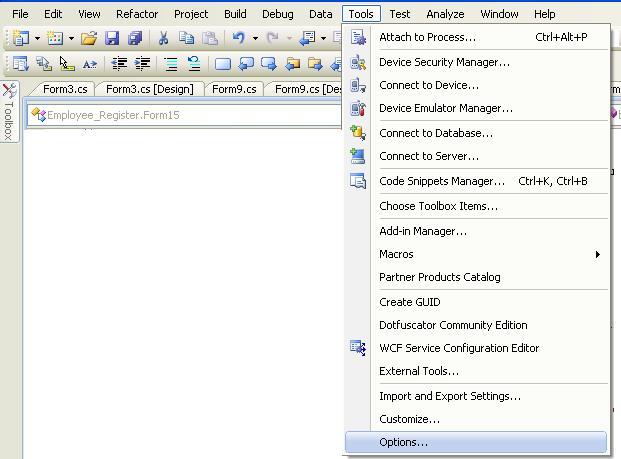
1> Click Tools menu.
2> Click Options.
3> At the left hand side pane, select Text editor
4> Select Basic. and in General option check the check box attach with Line numbers (if you want to display only at a platform upon which you are working at present than select that platform and again follow the same step- General>Check the box attach with Line numbers).
5> Finish :)
We often need to go on a particular line number to check the error found, specified by the IDE, (Visual Studio 2008). In this way you can understand the need of line numbers along with code. however you can go on a particular line by pressing a key combination that is (ctrl+G), and input the line number there and you will take to the desired line number for whatever reason you want to go there.
Well there is one very simple trick to display each line for your code. These are as follows:-
1> Click Tools menu.
2> Click Options.
3> At the left hand side pane, select Text editor
4> Select Basic. and in General option check the check box attach with Line numbers (if you want to display only at a platform upon which you are working at present than select that platform and again follow the same step- General>Check the box attach with Line numbers).
5> Finish :)
 |
| Click Tools |
 |
| Text editor-> Basic-> Check Line number |
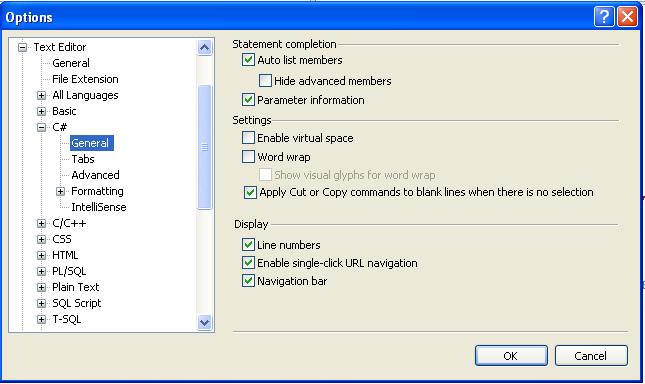 |
| ->Text editor -> C# -> Check Line number |
Subscribe to:
Posts (Atom)